
Roles and permissions
A role is a rank plus a list of permissions. Rank decides who can act on whom. Permissions decide what the buttons do.
On this page
How it works
Every staff member holds one or more roles. A role has a key, a display name, a rank from 1 to 599, a list of members, a list of permissions, and an optional chat tag and colour.
- Your permissions are everything your roles allow, added together.
- You can act on a player only if their highest rank is below yours.
- You can only give what you hold, and only to ranks below yours.
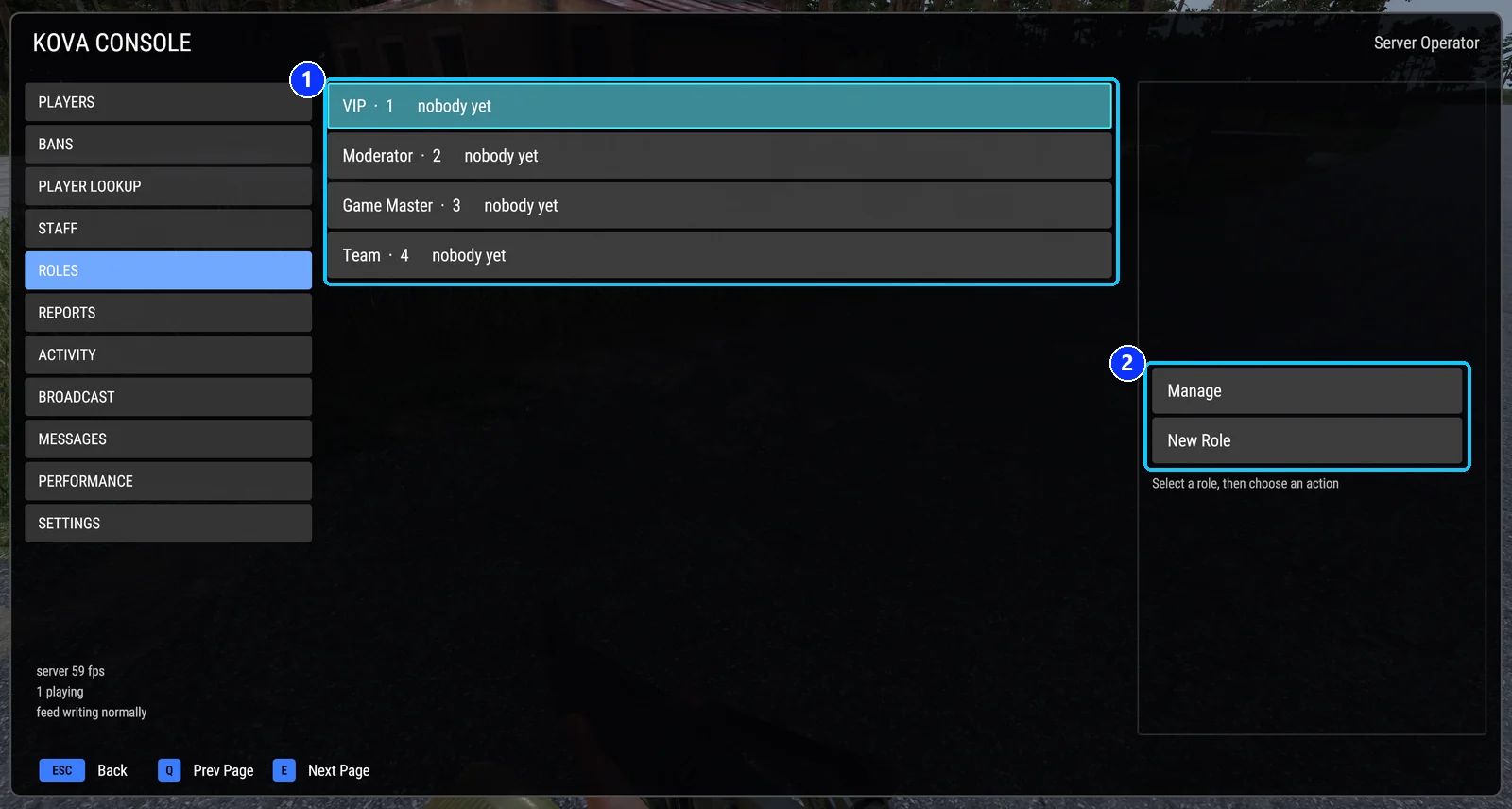
- The roles, highest rank first. Select one to see it.
- Manage the selected role, or make a New Role.
The starting roles
The mod ships with four. Rename them, change their ranks, add members, or add your own.
| Role | Rank | What it can do |
|---|---|---|
| Owner | 30 | Everything, including managing roles. |
| Admin | 20 | What a Moderator can, plus ban and lift bans, give and block Game Master, broadcast, reload the settings, see the staff list, read player records and notes, read the activity record, assign roles, give timed access. |
| Moderator | 10 | What a Game Master can, plus warn, kick, jail, set ranks. |
| Game Master | 5 | Teleport, bring, heal, use Game Master, move the Game Master camera. |
The Game Master role is also the one a player is placed in when staff hand out Game Master.
Add a staff member
Two ways. Both take effect within a minute, no restart.
-
In the settings file. Add the player ID under the role’s
members:"members": { "0123abcd-4567-89ef-0123-456789abcdef": "Dave" } -
In game. Staff page, select the player, Give Role. Or type
#kova role assign 3 moderator(3 is the player’s number from#kova who). Roles given in game are kept in the mod’s own file, not in the settings file.
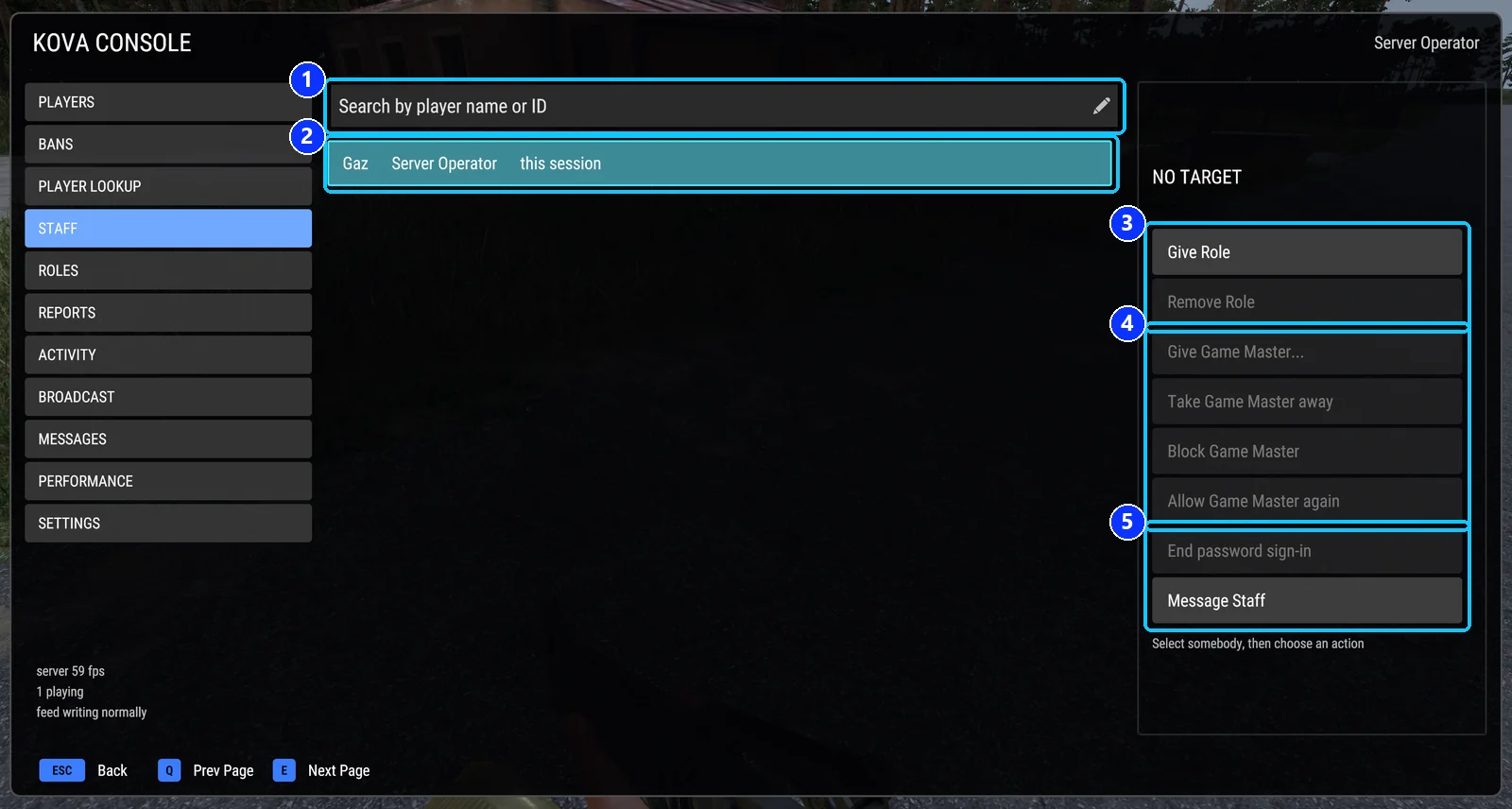
- Search by name or player ID.
- A staff member: name, role, and how long the role lasts.
- Give Role and Remove Role.
- The Game Master buttons: give, take away, block, allow again.
- End password sign-in for the selected player, and Message Staff.
On a KOVA server the panel’s Admin Tools tab edits the same members list for you.
To give a role for a limited time, use Give Role with a role you may only give timed access to, or #kova role grant 3 moderator 120 for 120 minutes.
Permission words
Write these in a role’s permissions list, or tick them in the panel or the in-game role editor. The middle column is the label staff see on the buttons.
| Word | Label | What it allows |
|---|---|---|
warn |
Warn players | Warn one player, or everyone. Opens the Broadcast page. |
kick |
Remove players from the server | Kick a connected player. |
ban |
Ban players | Ban, edit a ban, lift a ban. Opens the Bans page. |
jail |
Jail players | Jail and release players, set the jail location. |
teleport |
Teleport to a player | Move yourself to a player, or bring one to you. |
teleportCam |
Move the Game Master camera | Move your own Game Master camera to a player. |
heal |
Heal players | Heal one player or everyone. Nobody is revived. |
gameMaster |
Use Game Master | Get the Game Master editor while connected. On a role ranked above the Game Master role that holds everything it carries, also give, take and block it. |
broadcast |
Broadcast messages | Send a server-wide message. |
setRank |
Set ranks | Promote, demote and set Conflict ranks. Opens the Ranks page. |
playerInfo |
Read player records | A player’s full record. Also opens the staff list, Roles, Reports, Bans and Activity. |
playerNotes |
Read and write player notes | Private staff notes on a player. |
settings |
Edit server information | Server information, messages, the Settings page switches, time of day. Opens the Messages page. |
reloadAdmins |
Reload the configuration | Re-read the settings without a restart. |
cleanup |
Clean up wrecks and drops | The cleanup button on the Performance page. |
zones |
Manage safe zones | Add, remove and clear safe zones. |
changeFaction |
Change a player’s faction | Move a player to another side. |
manageSquads |
See and disband squads | List squads and disband one. |
manageCommander |
Give and remove Commander | Make a player Commander, or remove them. |
masterAdmin |
Master admin | Every permission, including ones added later. |
Some words include their companions, so you do not have to list them: ban also lifts bans, teleport also brings a player to you, playerInfo also opens the staff list and the activity record, and the top-ranked role always manages, assigns and grants roles.
Internal names, and words that carry nothing
The roles file the mod exports and the audit record use internal names for four words: gameMaster is written useGm, teleportCam is gmCamera, settings is serverInfo, reloadAdmins is reload. The companions are spelled out there too: unban, bring, giveGm, blockGm, viewAdmins, viewAudit, manageRoles, assignRoles, grantTemporary. You may write those in the settings file as well.
The word none means the role grants nothing and cannot be mixed with anything else. Six older words are accepted but do nothing: fps, uptime, getGuid, effects, squads, faction. A word the mod does not know is kept, named in the server log, and ignored.
A role with no permissions
A role with an empty permissions list is not powerless. It gets the default set for its place on the ladder: the highest rank counts as Owner, the next as Admin, the next as Moderator, everything below as Game Master. A new role at rank 15 with nothing ticked therefore behaves like a Moderator. You can change those defaults with the tierCapabilities setting.
Edit a role in game
Open Roles, select a role, press Manage. You can create, edit, delete, assign or remove the role, view its members, or edit its permissions. Creating or editing asks one thing at a time: key, name, rank, permissions, chat tag, chat colour, then a summary to confirm.
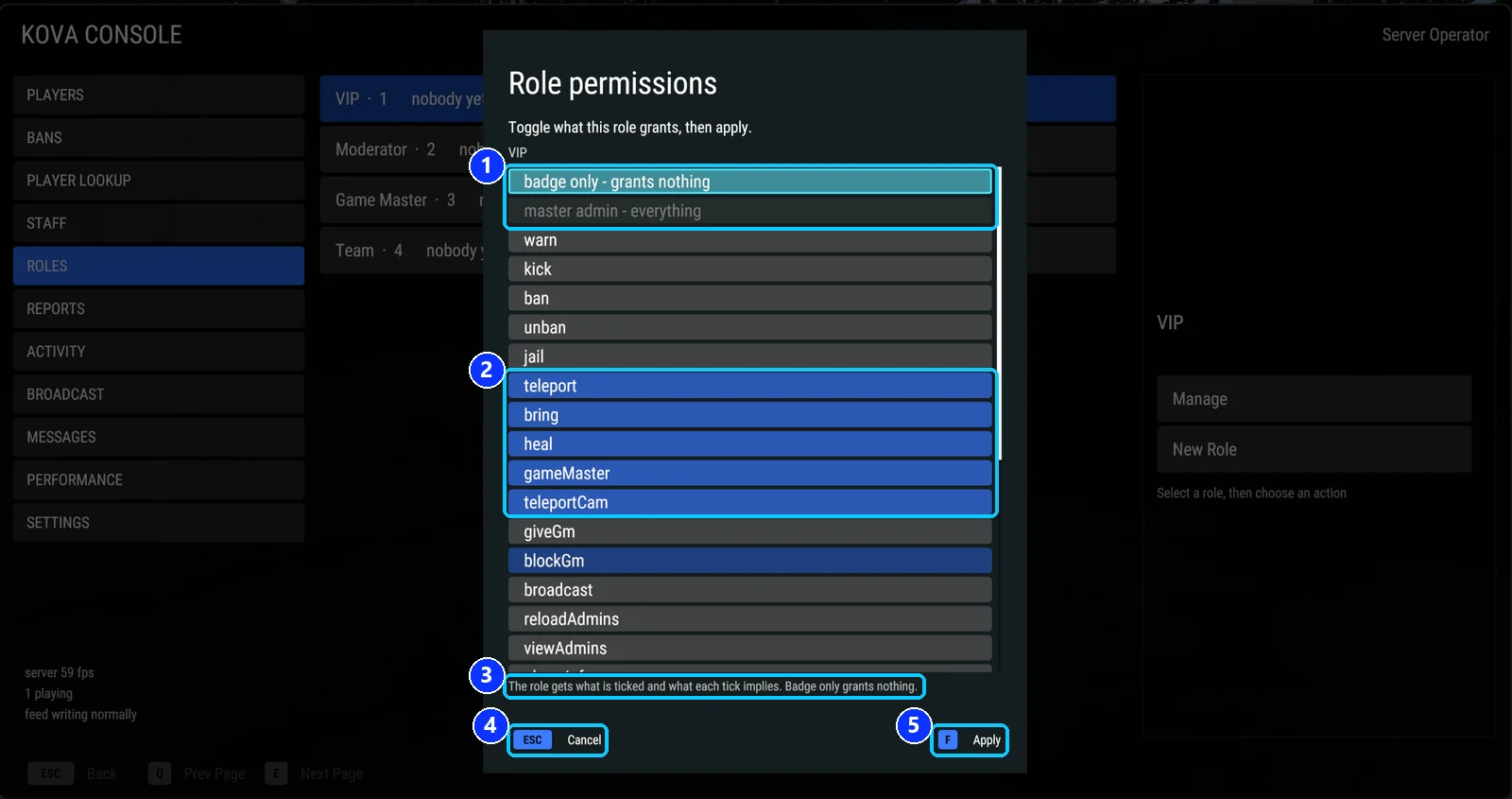
- Two shortcuts at the top: badge only, which grants nothing, and master admin, which grants everything.
- The permissions. A blue row is granted. Press a row to flip it.
- What the ticks add up to: the role gets what is ticked and what each tick implies.
- Cancel keeps the role as it was.
- Apply saves. On a keyboard it is F, on a controller Y, so that picking a row never applies by accident.
A role written in the settings file or the panel cannot be deleted in game, and a member written there cannot be removed in game. Where a role exists in both places, the in-game version wins for name, rank, permissions and chat tag; the members from the file are kept.
The rules of rank
- You act only on players ranked below you.
- You create or move a role only to a rank below yours.
- You cannot manage a role you hold.
- You cannot give a role that carries a permission you lack.
- You cannot give a role permanently unless your own membership is permanent.
- The last owner cannot be removed.
- Members of the highest-ranked role in the settings file are protected: only another member of that role can act on them.
Note. Healing is the one exception. Anyone with Heal players may heal anybody connected, whatever their rank, including themselves.
Chat tags and colours
A role can carry a chat tag of up to 16 characters and a colour. Staff chat lines wear the tag of their highest role that has one, and the colour paints the line. Colours are blue, green, yellow, orange, red, pink, purple, white, or a hex value such as #7FB2FF.
A complete example
{
  "key": "helper",
  "displayName": "Helper",
  "rank": 8,
  "members": {
    "0123abcd-4567-89ef-0123-456789abcdef": "Dave",
    "fedcba98-7654-3210-fedc-ba9876543210": "Priya"
  },
  "permissions": [ "warn", "kick", "teleport", "heal" ],
  "chatTag": "[HELPER]",
  "chatColor": "green"
}
Rank 8 sits between Game Master (5) and Moderator (10), so a Helper can act on Game Masters but not on Moderators.
Covers KOVA Admin Tools 1.0.58. Updated October 6, 2026.