
Getting around
One key opens the tools. Pick a page on the left, select a player, press a button on the right.
Open the tools
Press F11. It works while you play, in the map, in the deploy screen and in the Game Master camera. Press it again to close.
If you would rather use the pause menu, press Esc and look for the KOVA button in the button row.
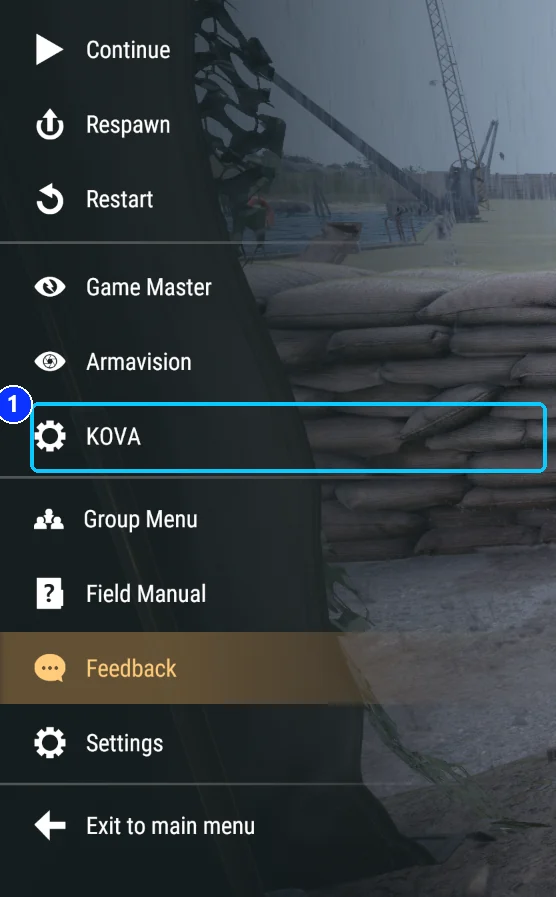
To change the key, go to Settings, Controls, and find Open Admin Tools under KOVA Admin Tools.
On a controller there is no F11: press the menu button, then KOVA. Everything else works with the sticks and face buttons; see Using a controller.
Sign in
When you press the key, the server checks what you may do. If you hold a role, your menu opens. If you do not, the login dialog opens instead.
Three things get you in:
| Route | How it works |
|---|---|
| A role | Your player ID is in a role’s member list, or staff gave you a role in game. No password. This is the normal way. |
| The server password | Type the server’s passwordAdmin into the dialog. You count as the admin role for this session. |
| The server’s administrator list | If the server config lists you as an administrator, you count as the admin role from the moment you join. |
The last two can be switched off with the allowServerAdminLogin setting.
Note. A player with no role sees nothing but the login dialog. No pages, no player names.
If your connection drops and you come back within a minute, you are signed in again automatically.
Two menus, same tools
Every staff member picks one of two looks. Both show the same pages and follow the same permissions.
- The rail. One button per page you may open.
- The page. Lists are searchable; pick a row to select it.
- The card. The selected player's name, a hint, and the actions for this page.
- Server health, shown if your role may read it.
- Back, and previous and next page.
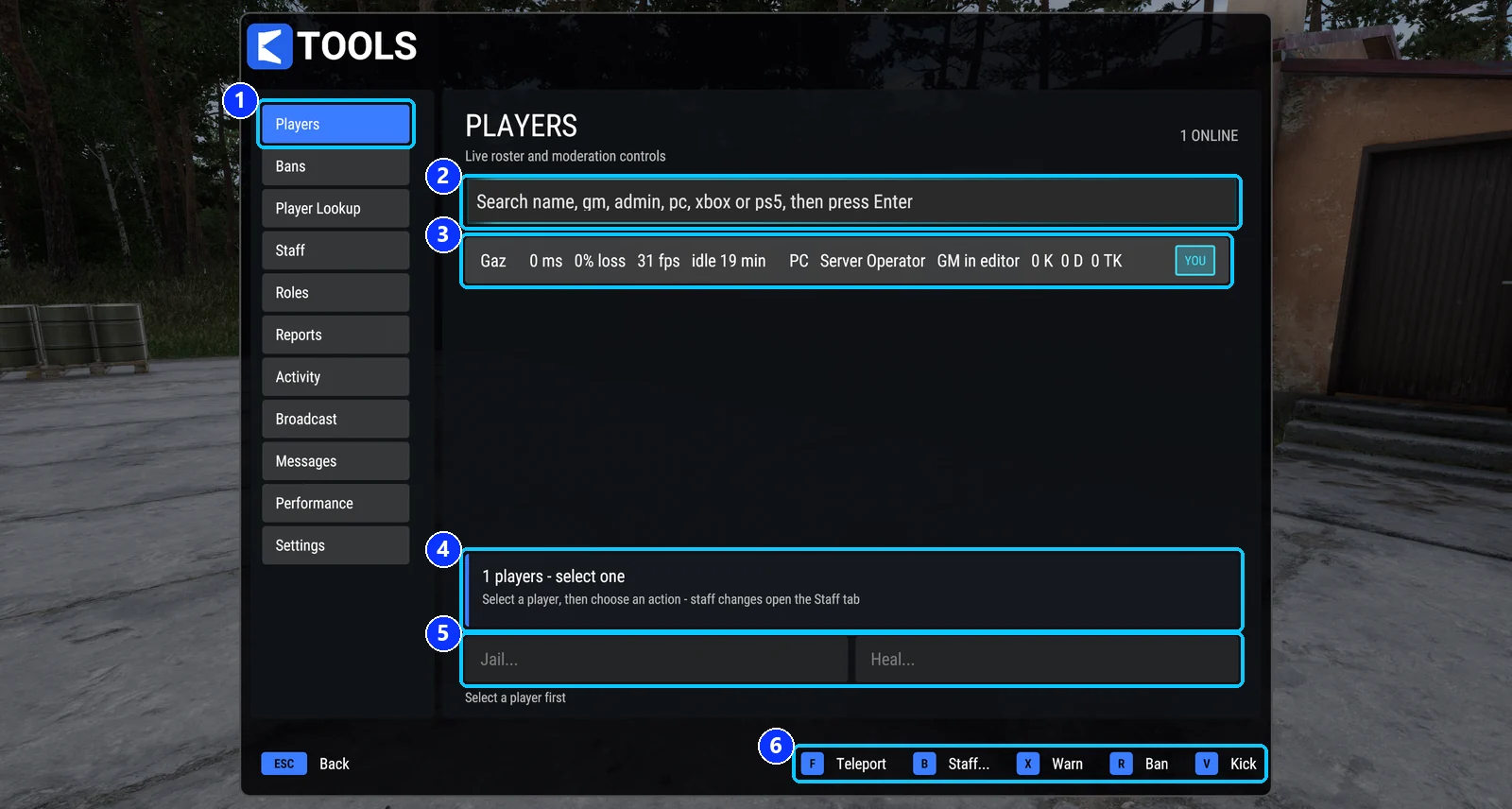
- The tabs. One per page you may open.
- The search box. Type part of a name, or a word such as gm, admin, pc, xbox or ps5, then press Enter.
- One row per player: ping, loss, frame rate, idle time, platform, role, Game Master state and the kill, death and team-kill counts. The YOU badge marks your own row.
- The card for the selected player and a hint about what the actions do.
- Jail and Heal, which open their own pop-ups.
- The footer actions, each with its key or controller button.
To switch, open Settings and use Admin menu. The change applies the next time you open the tools, and it is remembered for you.
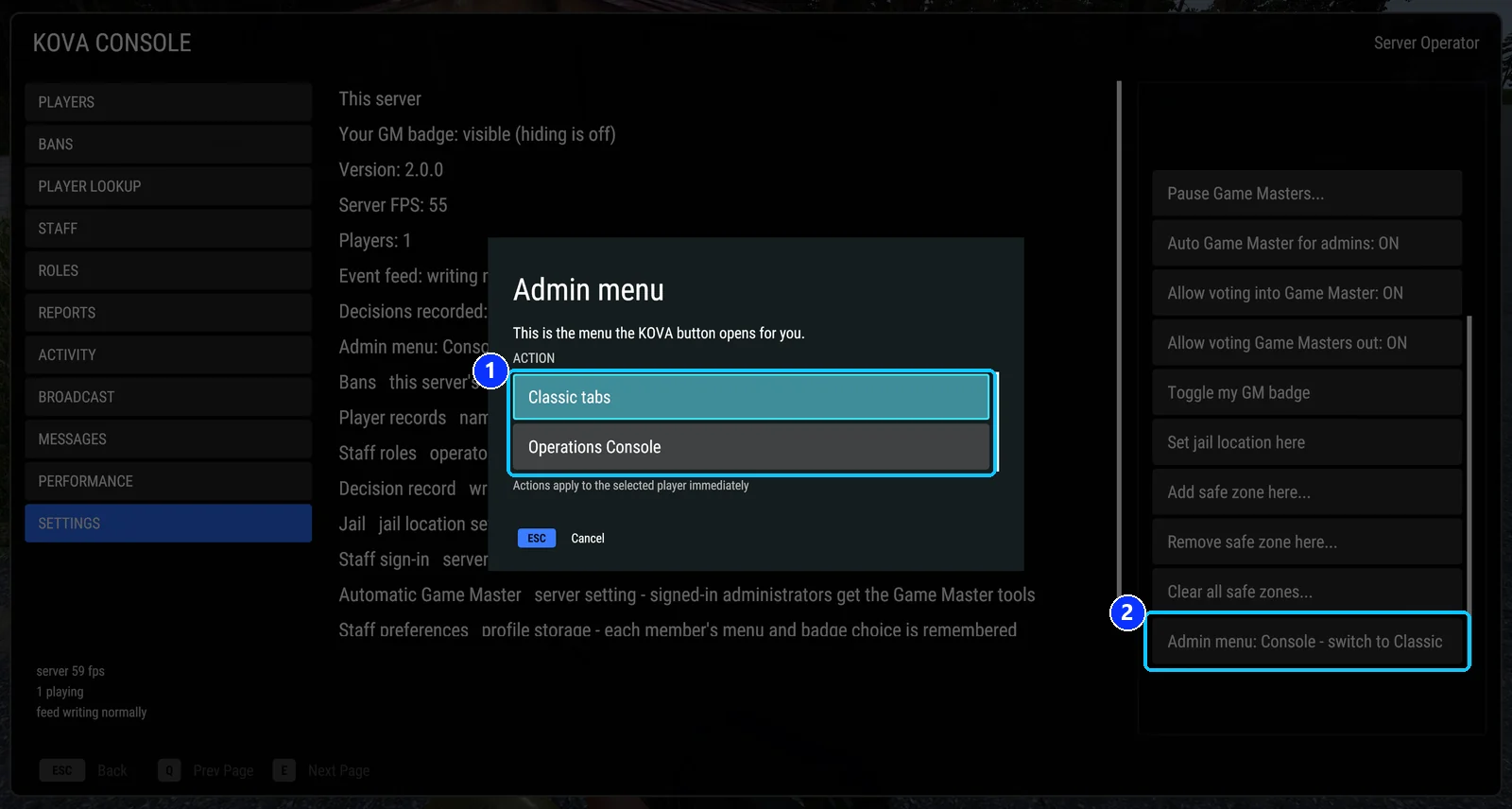
- The two choices. Pick one and it is saved.
- The Admin menu button at the bottom of the Settings card. Its label shows the current choice.
The pages
| Page | What it is for |
|---|---|
| Players | Everyone online. Warn, kick, ban, jail, teleport, heal. |
| Ranks | Conflict ranks: promote, demote, set. |
| Bans | Every ban on record. Edit or lift one. |
| Player Lookup | Everyone the server has ever seen, with past names and notes. |
| Staff | Who is on with staff access. Give roles, give and block Game Master. |
| Roles | Create and edit roles and their permissions. |
| Reports | Reports from players, and requests for an admin. |
| Activity | The newest events the server recorded. |
| Broadcast | Send an announcement, or a warning to everyone. |
| Messages | The welcome line, server information and scheduled messages. |
| Performance | Server FPS, ping, players, AI, and a cleanup button. |
| Settings | Live switches, the jail location, safe zones, your menu choice. |
A page only appears if your role holds a permission that opens it. Roles and permissions lists which.
A few rules that hold everywhere
- Selecting a row never adds or removes buttons. It only changes which ones you can press.
- A button you cannot press is greyed and tells you why: the permission you lack, or
They are not on the server. - The menu checks your access every five seconds. If it is taken away, the menu closes.
- You cannot act on anyone ranked at or above you, and you cannot give or take your own Game Master.
Covers KOVA Admin Tools 1.0.58. Updated October 6, 2026.