
Using a controller
Every page, every button and every pop-up works on a gamepad.
On this page
Open the tools
Press the menu button (Menu on Xbox, Options on PlayStation) to open the pause menu, then choose KOVA.
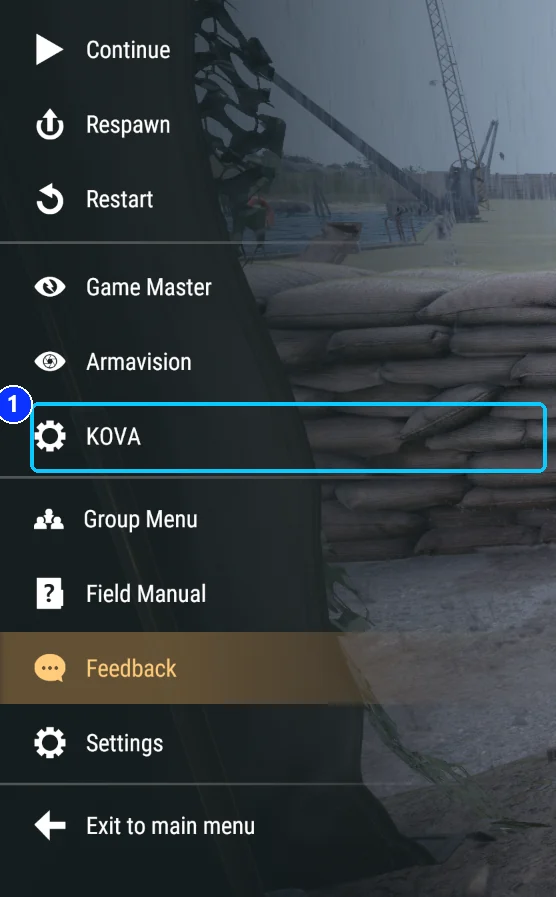
If you have no role yet, the login dialog opens with the password box ready to type. Press A to bring up the on-screen keyboard if it is not already there.
Where you start
When the tools open, the highlight sits on the page list at the left, on the page that is showing. It goes back there every time you change page, so you always know where you are.
| Control | What it does |
|---|---|
| Up and down | Moves along the page list, down a list of rows, or down a column of buttons. |
| Right | Goes deeper: from the page list into the page, along a row of controls, then onto the action card. |
| Left | Comes back the same way, and ends on the page list. |
| A / Cross | Selects the highlighted row, or presses the highlighted button. Once per press. |
| B / Circle | Back. Stops typing first, then closes a pop-up, then the menu. |
| LB / RB (L1 / R1) | Previous and next page. |
| Right stick | Scrolls the list. When the list fits on screen, it scrolls the detail card instead. |
A greyed button cannot take the highlight, so the highlight skips it. On the console, the hint line under the card tells you why the first greyed button is off.
A page, step by step
- Press down the page list to the page you want and press A. The page opens; the highlight stays on its button.
- Press right. On a page with a search box the box lights up. Press A to type, B to stop. Press down to reach the rows.
- Press A on a row to select it. The card fills in.
- Press right again. The first action on the card lights up. Up and down move between the actions, A presses one, left returns to the row.
- Press left from the rows or the search box to get back to the page list.
On pages without a search box, right from the page list lands on the first thing you can use: the first switch on Settings, the message box on Broadcast and Messages, the first role on Roles. On Performance there is nothing to highlight on the page, so right goes straight to Clean Up.
Which menu to use on a pad
Both work. The classic menu is the quicker one on a controller: each page’s actions sit in the footer with one button each, so you select a row and press a button. On the console you press right onto the card and A on the action instead.
To switch, open Settings and use Admin menu. Your choice is remembered.
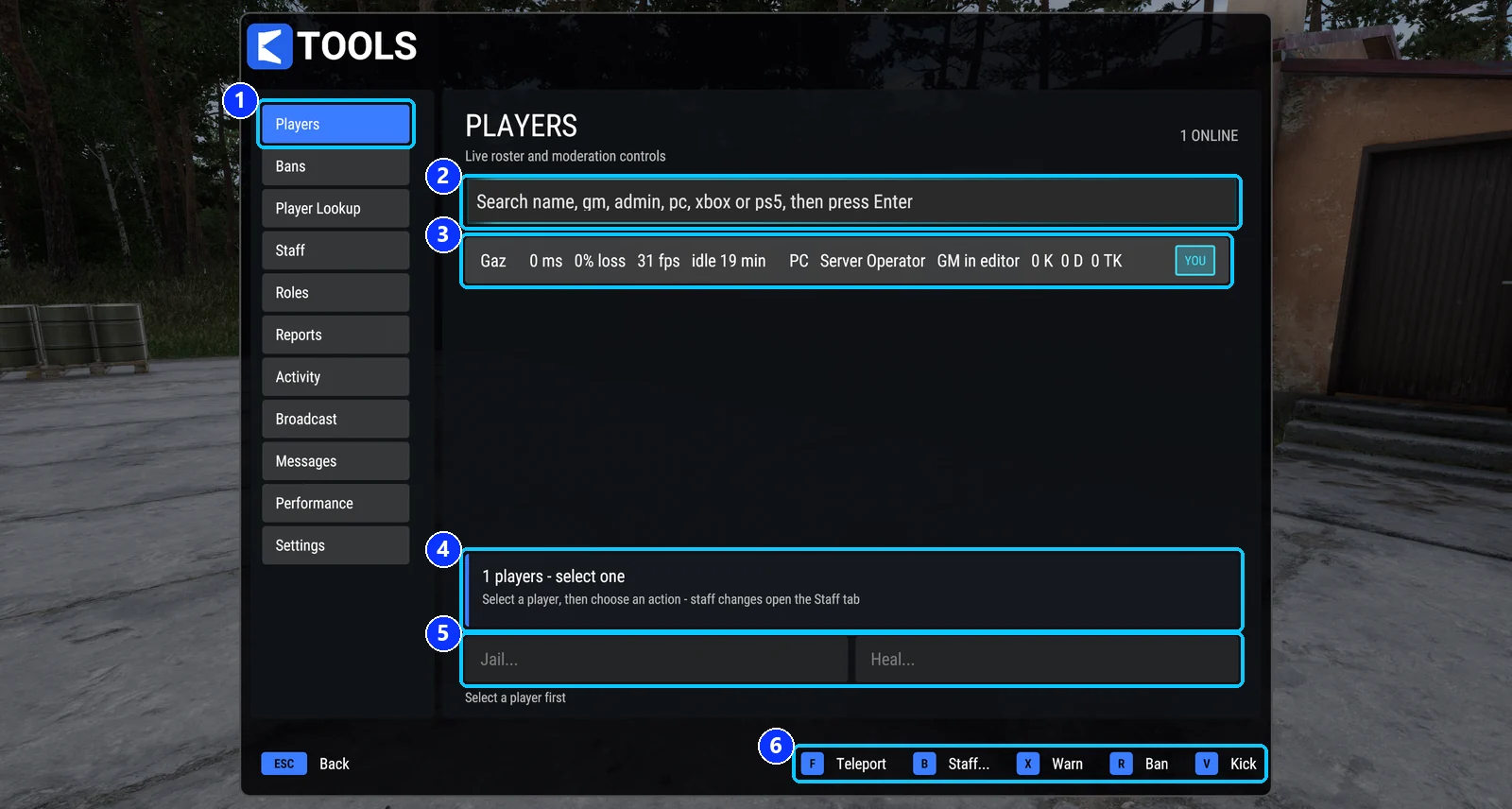
- The tabs. Up and down to move, A to open one. LB and RB do the same.
- The search box. A starts typing; left returns to the tabs.
- The list. Up and down to highlight a row, A to select it.
- The player card. The right stick scrolls it when the list fits on screen.
- Jail... and Heal..., a row of buttons under the card. Right from a row reaches them; left returns.
- The footer: one button per action, with its glyph.
Pressing A again on a row you already selected opens that tab’s actions as a list. The Staff tab does not do this.
The footer buttons, page by page
The game draws the glyph next to every action. The same five buttons are used throughout. Xbox names below; on PlayStation, X is Square, Y is Triangle, Menu is Options, and R3 is a press of the right stick.
| Page | R3 | X | Menu | View | Y |
|---|---|---|---|---|---|
| Players | Kick | Ban | Warn | Staff… | Teleport |
| Bans | Unban | Edit | |||
| Player Lookup | Copy ID | Ban | Recently left | Staff… | Notes |
| Staff | Remove Role | Give Role | Message Staff | End password sign-in | |
| Roles | New Role | Manage | |||
| Reports | Claim | Resolve… | Observe | Reply… | Release |
| Broadcast | Warn All | Set Preset | Remove Preset | ||
| Messages | Discard | Clock | |||
| Performance | Clean Up | ||||
| Settings | Toggle my GM badge | Server information | Heal all |
On the Staff tab, the four Game Master buttons (give, take, block, allow) are rows under the staff card: right from a staff row reaches them. On the Settings tab, the switches and the time-of-day buttons are rows too. On Messages, a repeated or scheduled message is one row: right walks from its text to the minutes or the time, then Pause, then the bin.
Typing
Any text box lights up when the highlight reaches it. Press A to type and B to stop; while you are typing, left and right move inside the text. You will meet a box for a ban reason (or pick a ready-made reason with the d-pad instead), a warning, a jail time, a Game Master time, a broadcast, a note, and the role editor. The pop-ups that exist only to take text open ready to type.
Pop-ups
A pop-up’s rows of buttons work like a page: up and down between rows, left and right along a row, A to pick. The footer of a pop-up carries its own glyphs, and B always cancels.
What differs on a console
- Copy ID shows the player ID on screen for you to read, since there is no clipboard.
- Chat commands work through the chat box and the on-screen keyboard. Every command also has a button in the menus.
- Dialogs with long lists scroll with the right stick.
Covers KOVA Admin Tools 1.0.58. Updated October 7, 2026.